Live see-through background
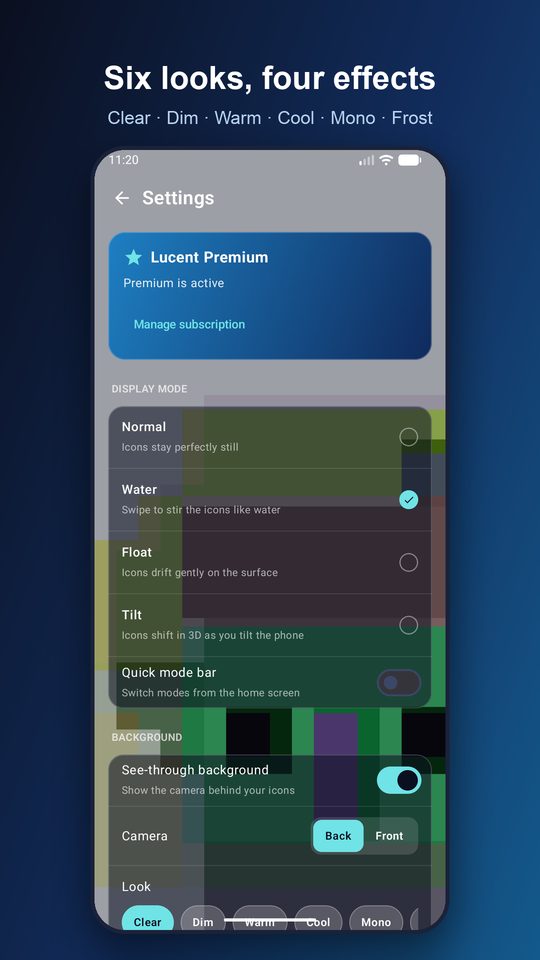
The rear or front camera fills the screen behind your icons. Turn it off any time to use a static glass background and save battery.
 Lucent
Get the app
Lucent
Get the app
Camera shortcuts for iOS and Android
Lucent puts the live camera view behind your app icons, so the screen looks like a sheet of glass. Swipe and the icons ripple like water. Drag apps together into folders, let Lucent sort them by category, and search your shortcuts. Tap the camera icon to save a photo to your gallery. Lucent does not upload your camera images.
Android 8.0+ · iOS 17+ version in preparation
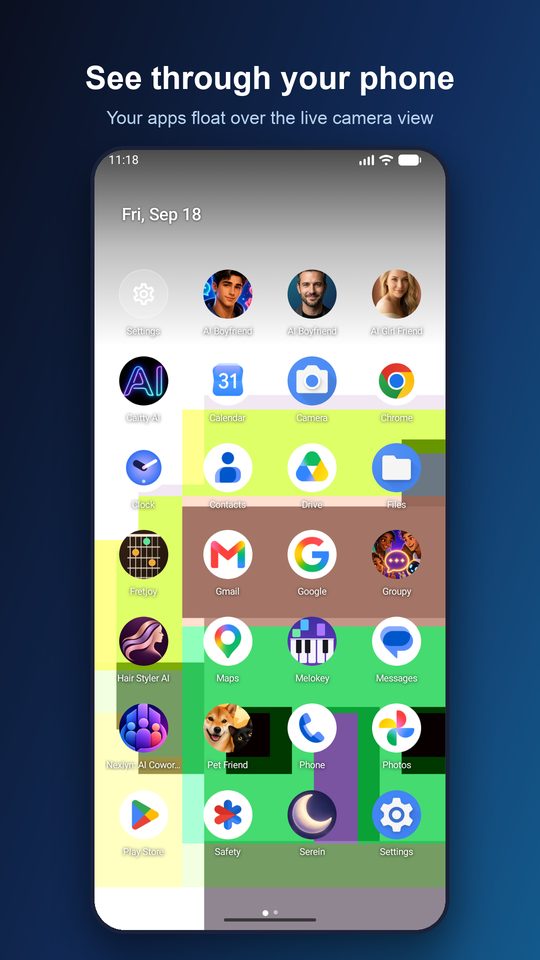
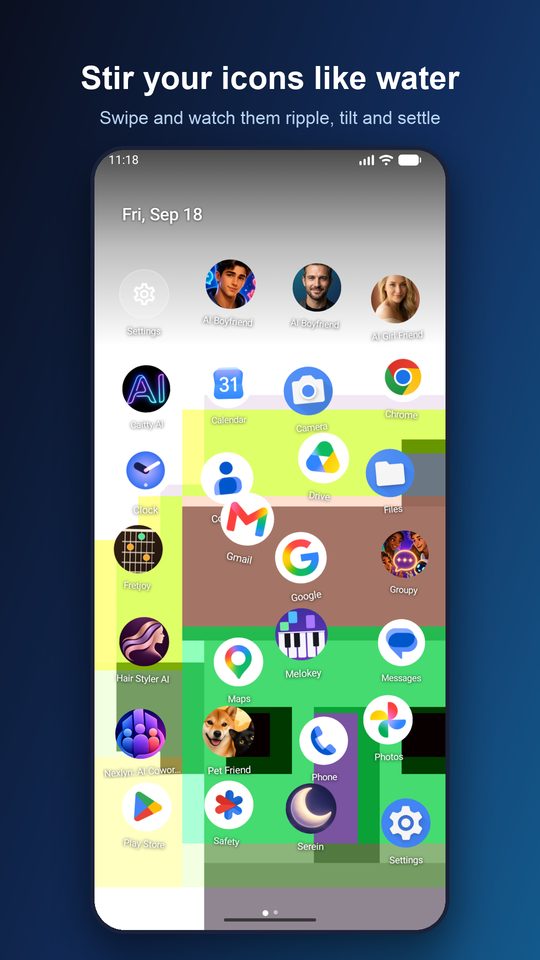
Everything you expect from a launcher, drawn on top of what your camera sees right now.
The rear or front camera fills the screen behind your icons. Turn it off any time to use a static glass background and save battery.
Swipe to stir the icons like the surface of a pond. Float lets them drift on their own; Tilt shifts them in 3D as you move the phone.
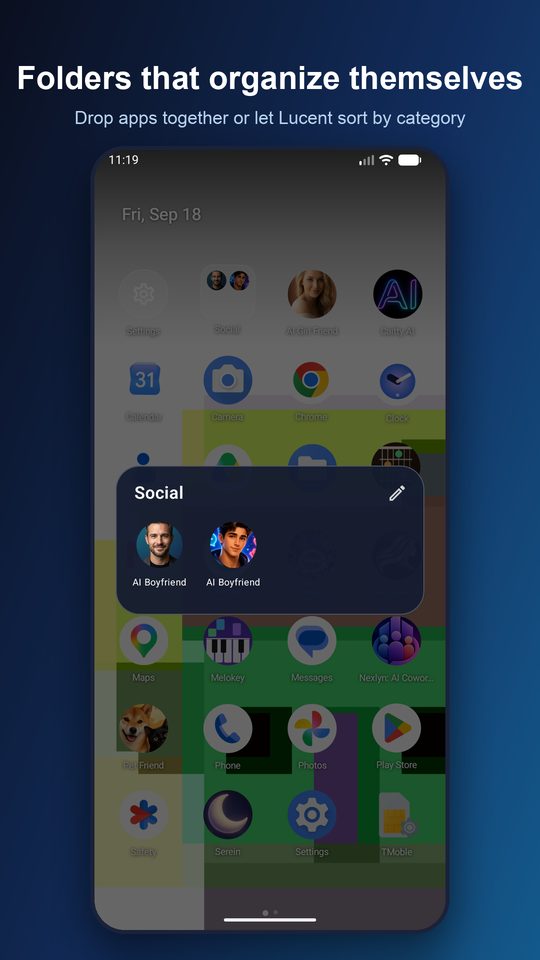
Drop one app on another to make a folder, named after its category — Photo & Video, Games, Finance. Or switch on auto-organize and let Lucent file everything.
Swipe sideways between pages like the system home screen, or choose a single scrolling grid. Pick 3 to 6 columns and your icon size.
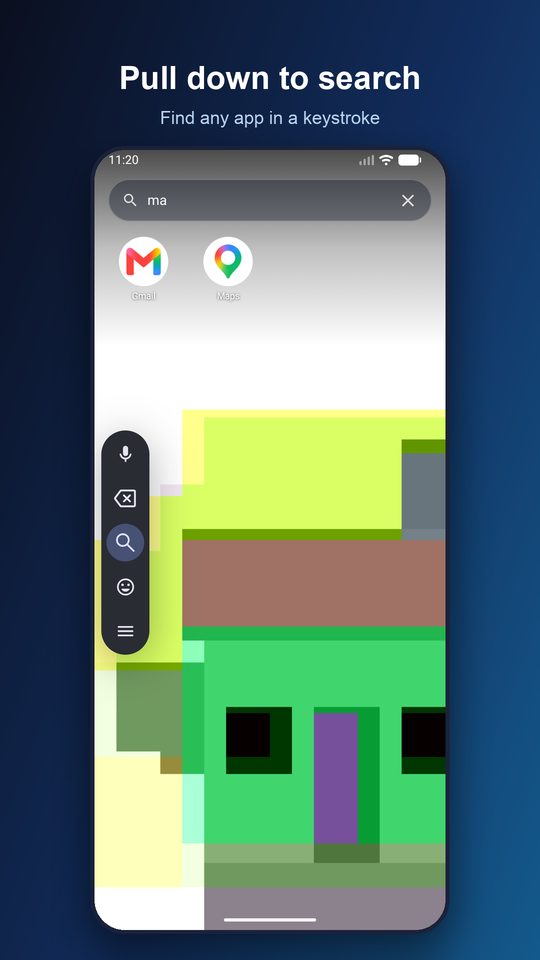
Drag down anywhere and start typing. Results appear as you type; tap to launch.
Clear, Dim, Warm, Cool, Mono and Frost tint or blur the camera to match your mood. On Android, Lucent can also be your default home screen. iOS shortcuts live inside the app.
Allow a live on-device preview, or continue without it. Taking a photo asks for any additional permission needed to save it.
Long-press to move an app, drop it on another to make a folder, long-press a folder to rename it.
Open Settings, choose Water, Float or Tilt and a look from Clear to Frost. Optionally set Lucent as your home screen.
Lucent does not upload camera images. The preview stays on-device. Tap Take photo to save an image to your photo library; your system backup settings may sync it. The app uses Google Mobile Ads, and Android purchases use Google Play Billing.
Yes. In Settings turn on “Use as home screen”, then choose Lucent in the system Home chooser. Pressing Home opens Lucent; you can switch back to your old launcher from the same system setting.
A live camera preview uses more power than a wallpaper. If you want to save battery, switch off “See-through background” in Settings — Lucent then shows a static glass background and the effects still work.
Check the Look setting: Frost blurs the camera on purpose. Choose Clear for a sharp view. You can also tap the background to refocus the camera.
When you drop one app onto another, the folder is named after the category of the app you dropped onto — for example Photo & Video or Finance. Long-press the folder to rename it.
On Android: every display mode and look, auto-organize folders, and no ads. Choose weekly, monthly or yearly, or a one-time lifetime purchase. Manage or cancel subscriptions in Google Play.
Free on Google Play.
Get it onGoogle Play